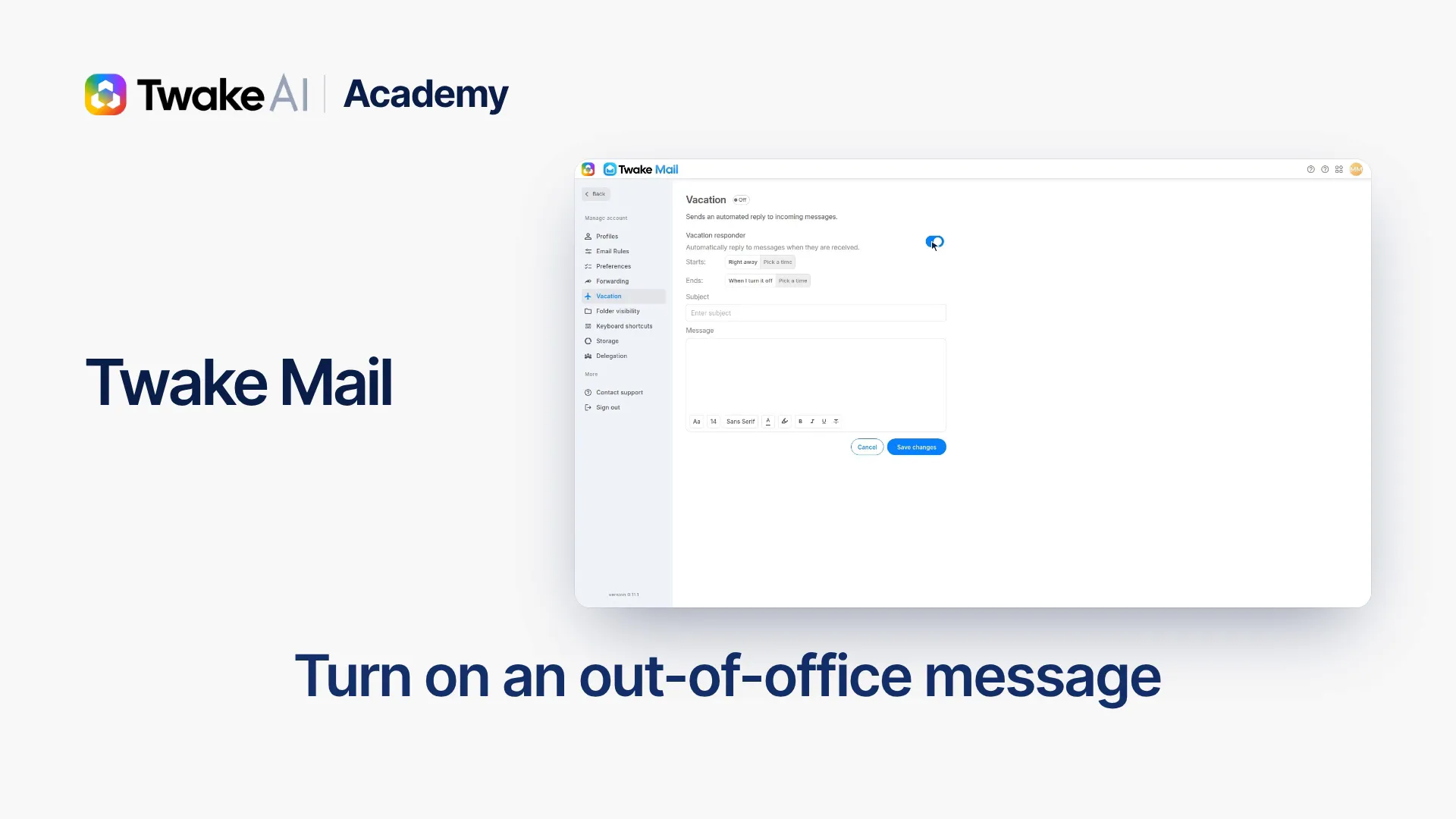
Turn on an out-of-office message
On this page
The YouTube player loads only when you click: no tracking until the video starts.
At a glance: Settings › Vacation · about 1 minute.
-
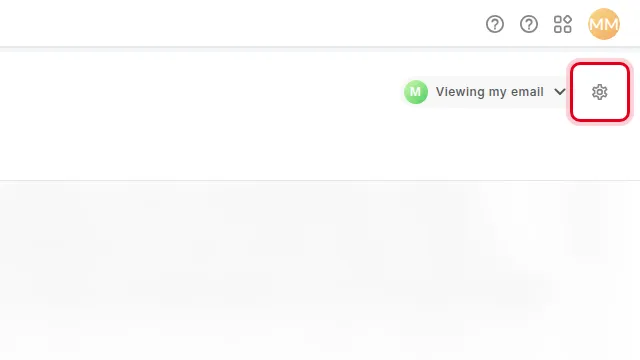
In Twake Mail, click Settings: the gear icon at the top right of the message list.
-
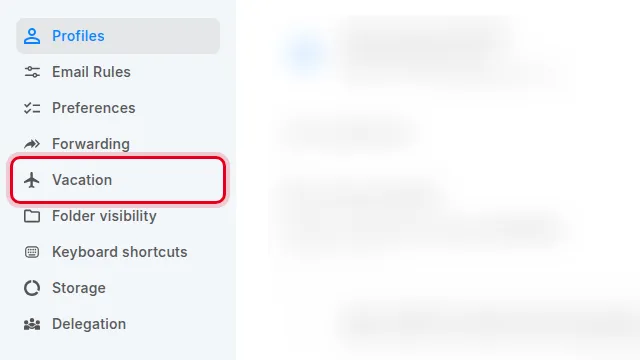
In the left menu, choose Vacation.
-
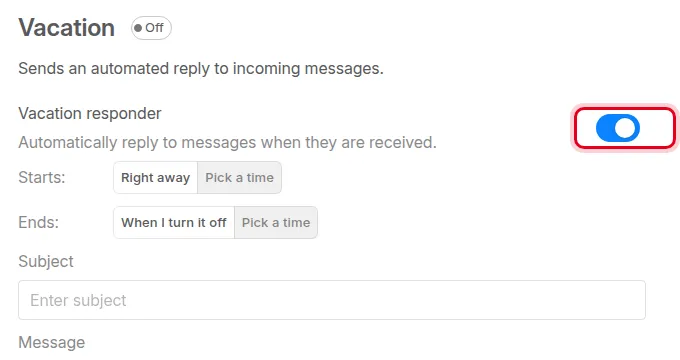
Turn on the Vacation responder switch. The message fields can now be edited.
-
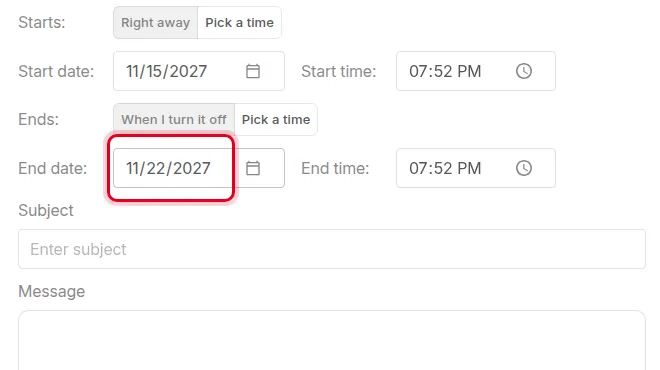
For Starts, click Pick a time, then enter the start date and time. Do the same for Ends, with the day you are back.
-
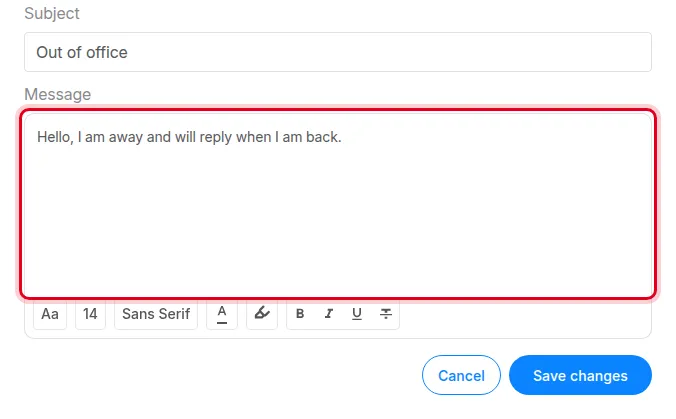
Enter the Subject, then write the Message your correspondents will receive.
-
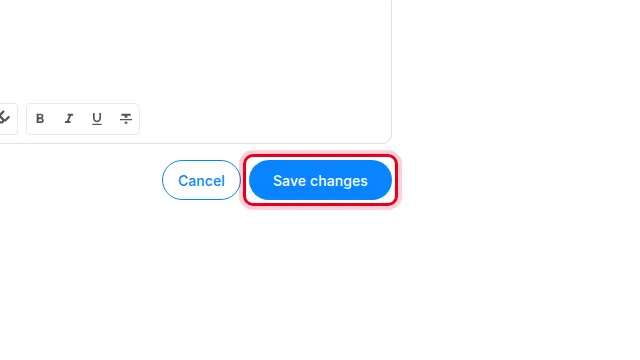
Click Save changes.